AI video, inside After Effects.
Summon turns stills into video and edits existing clips without leaving After Effects. Capture a frame from your playhead or pick a file, choose a model, and the clip comes back into your project, ready for the timeline. Two tabs do the work: Animate and Edit Video.
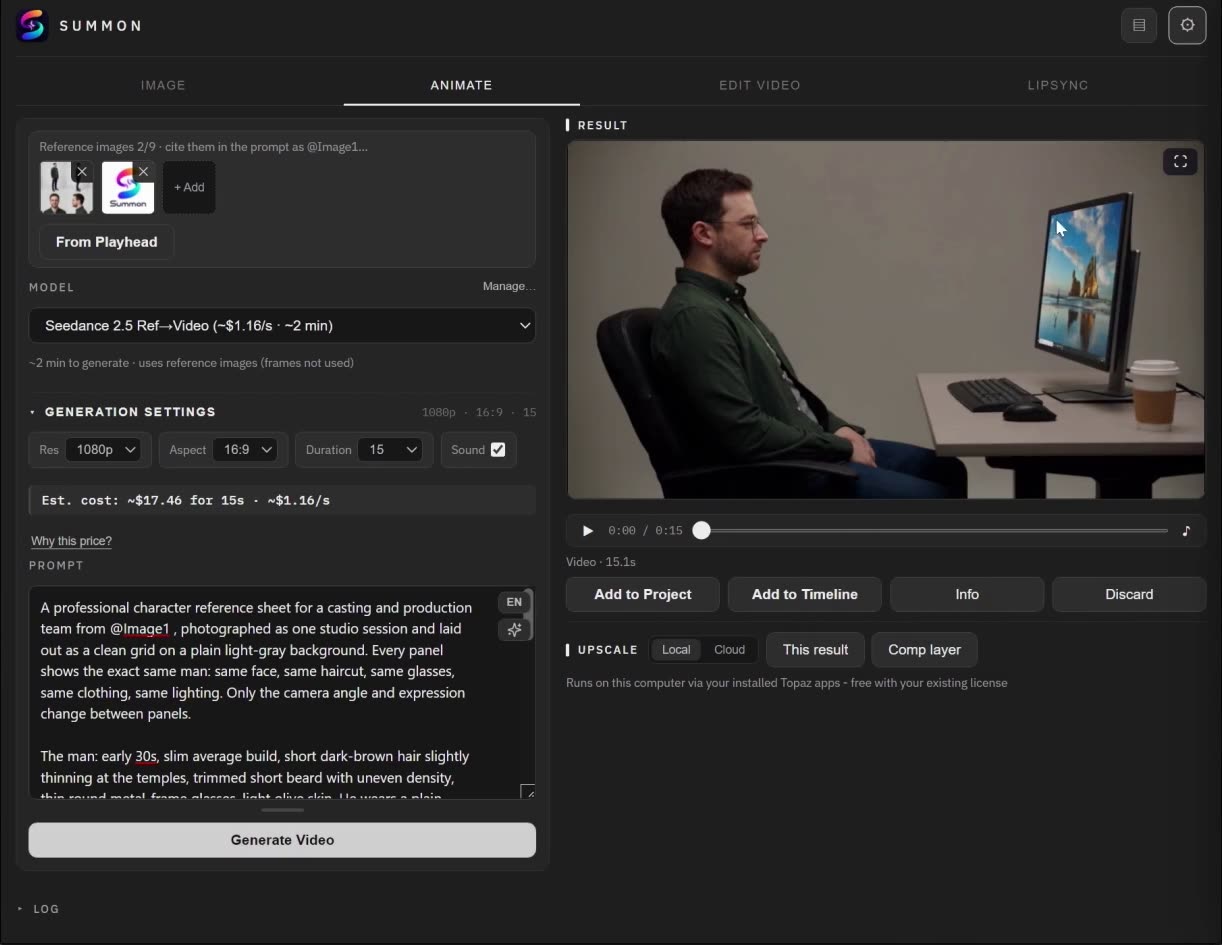
Animate: from a frame to a moving shot
- Start frame. Set start renders the frame under the After Effects playhead: what you see in the viewer is what the model gets. You can also pick an image file, drop one on the slot, or drag a take from the Activity drawer.
- End frame, optional. Move the playhead and click Set end. Models that support it, such as Veo 3.1 Fast First + Last Frame and FLUX 3 First + Last Frame, animate from the first frame to the second.
- References. Some models build the shot from reference images instead of a first frame, such as a character sheet and a logo. Click a reference thumbnail to insert its tag into the prompt, so the model knows which image is which.
- Motion description. Optional for most models. Describe the camera and the movement, and keep it short; the frame already carries the look.
Generation Settings typically offer resolution, duration and sound, and the estimated cost is shown per clip length, for example per 5 seconds.
Edit Video: change footage you already have
Load a clip from a file, the Activity drawer or a layer in your composition (From Comp Layer), choose a model and describe the change. Some models restyle the whole clip, some edit specific things, and some reframe a clip to a new aspect ratio by generating what is missing at the edges instead of cropping. Some accept a reference image of the result you want. The panel checks each model's limits on length, resolution and file size before uploading, and tells you what to change rather than sending a job that would fail.
Repair one shot instead of regenerating the film
In the full tutorial, a shot where the character's hand is off the mouse is fixed in place: capture the frame, correct the hand with an image model, render just that shot, and give Edit Video the clip plus the corrected image as a reference. The new shot goes back on the timeline over the old one, with the original sound underneath.
The models
Animate has 17 built-in models, including Seedance 2.5, Kling v3 Pro, Veo 3.1 Fast, MiniMax H3, Ray 3.2, FLUX 3, Wan 3.0 Prime and LTX 2.5 Fast, plus reference-to-video versions such as Kling O3 Omni and Seedance 2.5 Ref→Video. Edit Video has 10, including Kling O3 Edit Video, Gemini Omni Flash Edit, FLUX 3 Fast Edit Video and two reframe models, LTX-2.3 Reframe and Ray 3.2 Reframe. New video models can be added with the Model Manager.
Upscale the result
Upscale a generated clip or a layer in your composition, locally through your installed Topaz apps, free with your existing Topaz license, or in the cloud on fal.ai.
What it costs
Like every generation, video runs on your own fal.ai key at fal.ai's listed prices, with no Summon markup. The panel shows an estimate before you generate. How the pricing works.
See it in the tutorial
- Choose the animation workflow (2:25)
- Identify the shot to repair (6:44)
- Replace the shot and preserve sound (8:16)
Questions
- Can I start from a frame in my composition?
- Yes. Set start renders the frame under the playhead and uses it as the start frame, and Set end does the same for an optional end frame.
- Do I need to write a prompt?
- For Animate it's optional with most models. Edit Video needs a description of the change, except reframe models such as LTX-2.3 Reframe.
- Can it edit footage I already have?
- Yes. Edit Video takes an existing clip, from a file or a layer in your composition, and restyles, edits or reframes it.
- Where does the result go?
- The clip is saved in your project's folders next to the .aep file and appears in the Project panel. Add to Timeline places it in your composition.