AI lipsync and dubbing, inside After Effects.
Summon's Lipsync tab re-animates a face to match a voice without leaving After Effects. Load a clip or a photo, choose the audio, pick a model, and the result comes back into your project, ready for the timeline. No prompt is needed.
Three ways to use it
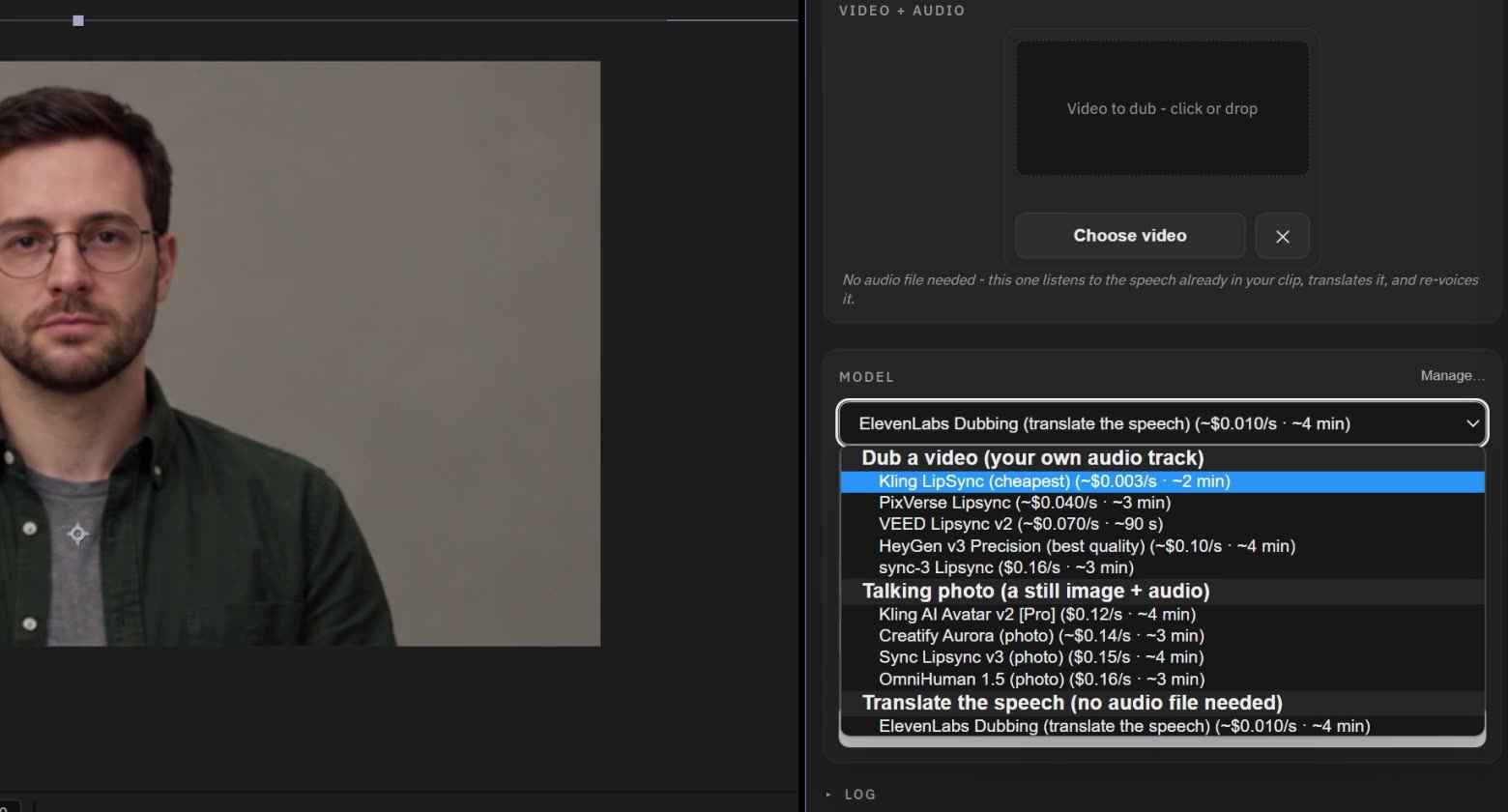
- Dub existing footage. Load a clip with a visible face and a new voice track. The clip keeps its picture; only the mouth is re-animated to match the audio.
- Make a photo talk. Load a still image, such as a frame captured from your playhead, and an audio track. The model turns them into a speaking clip.
- Translate the speech. ElevenLabs Dubbing listens to the dialogue already in your clip, translates it into one of 30 languages and re-voices it. No audio file is needed.
Audio straight from your composition
Choose audio has three sources: a file from disk, the audio layer selected in your timeline, or a render of the composition's own audio mix. The render is the one to use when a voice is built from several layers: set the work area around the line, solo the dialogue, and Summon renders just that range as the audio input.
The models
Ten lipsync models are built in. For dubbing footage: Kling LipSync, PixVerse Lipsync, VEED Lipsync v2, HeyGen v3 Precision and sync-3. For talking photos: Kling AI Avatar v2 Pro, Creatify Aurora, Sync Lipsync v3 and OmniHuman 1.5. For translation: ElevenLabs Dubbing. When a new lipsync model appears on fal.ai, you can add it yourself with the Model Manager, often the day it appears, without waiting for a Summon update.
What it costs
Lipsync runs on your own fal.ai account. fal.ai bills each generation at its listed price for that model, usually per second of video, or per second of audio for talking photos. Summon adds no markup. The panel shows an estimate before you generate and the billed amount afterwards.
Where the result goes
The finished clip is saved in your project's folders next to the .aep file and appears in the Project panel. Add to Timeline places it in your composition, and every job stays in History, so you can find it again later.
See it in the tutorial
The full tutorial uses Lipsync twice: a talking-photo close-up for the opening line, and a new performance for the closing line.
Questions
- Do I need to write a prompt?
- No. Lipsync needs a face, in a clip or a photo, and the audio. The translation model needs only the clip.
- What if the audio and the clip are different lengths?
- sync-3 lets you choose: cut off at the shorter one, loop the video, bounce it back and forth, hold on silence, or retime the video to the audio. HeyGen v3 Precision has a Fit to audio option.
- Which languages can it translate into?
- 30, including English, Spanish, French, German, Hebrew, Arabic, Chinese, Japanese and Hindi.
- What do I need?
- After Effects 2025 (25.0) or later on Windows or macOS, a fal.ai account with an API key, and Summon. The full panel is free for 7 days.